Advanced Features
Display relevant extensions at the top
Alongside automatic enable/disable actions, a rule can display its targets at the top of the Popup. For example, show translation and note-taking tools on reading pages, then choose manually which one to use.
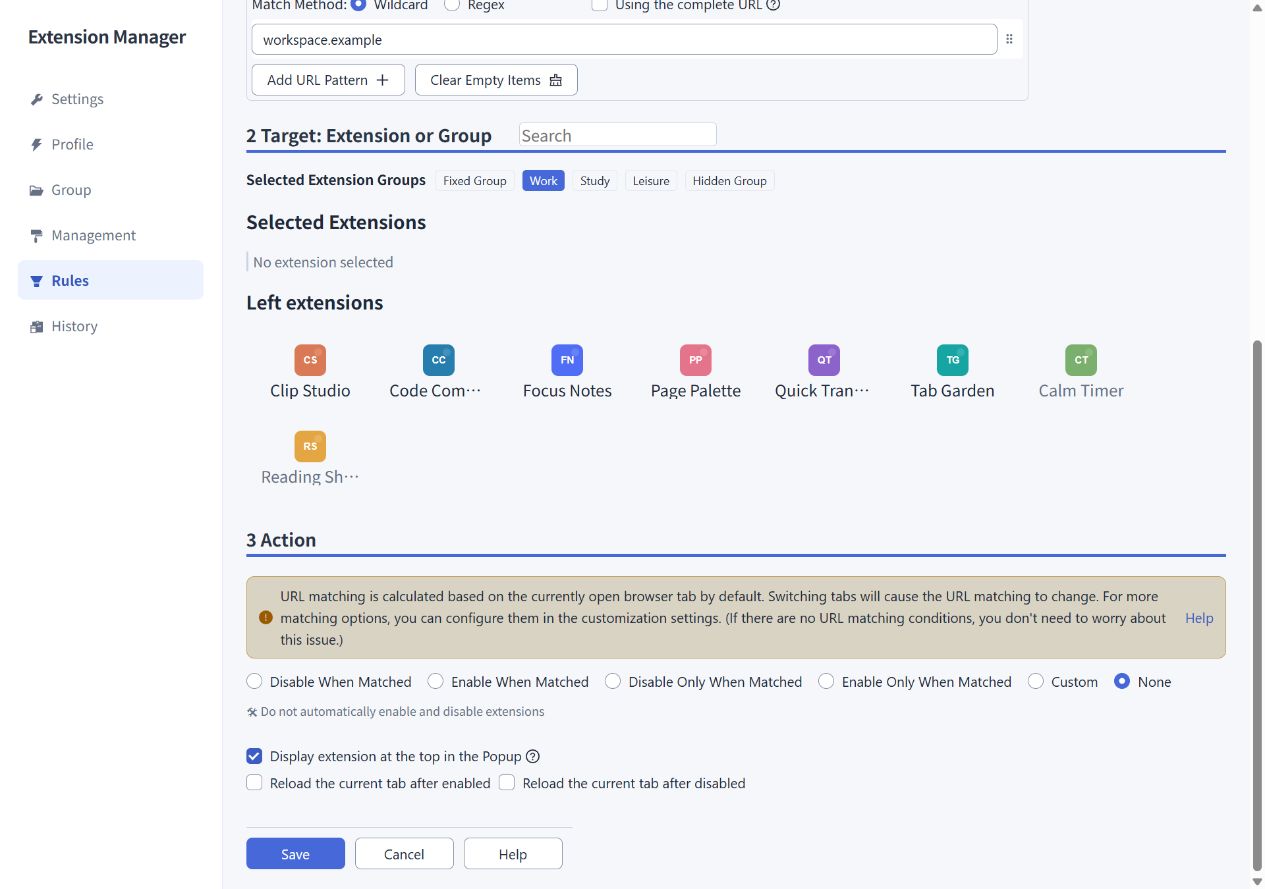
Example: show reading tools and keep manual control
- Create a Reading Tools group containing translation, note-taking, or other reading extensions.
- Add a rule with a URL condition, such as the Wildcard pattern
*://www.cnblogs.com/*. - Select Reading Tools as the target group.
- Choose None as the action and select Display extension at the top in the Popup.
- Save and keep the rule enabled. Open the Popup on a matching page to see the target extensions at the top.
None means the rule does not automatically enable or disable extensions. Top display only changes placement and leaves their states unchanged. You can also use top display alongside an automatic enable/disable action.
How top-display conditions work
Rule-based top display checks the current tab. It does not use a Custom action's Any Tab Match setting. Profile, operating system, and time conditions also participate, using the rule's all/any condition relationship.
After you switch to a page that no longer matches, opening the Popup will no longer place targets at the top because of this rule. They may still appear there because of another matching rule or the recent-activity settings below.
Display recently enabled, installed, or updated extensions
In Settings, you can independently enable:
| Setting | What it shows |
|---|---|
| Top the most recently enabled extensions | Extensions from the most recent manual-enable records, taking up to 10 entries. |
| Top the most recently updated extensions | Recent installations, or recent updates and installations, depending on the selected mode. |
Both preferences are off by default. The installation/update period can be 1, 7, 15, or 30 days; the default is 7 days. Recently updated also includes Recently installed.
When several top-display sources are enabled, the order is rule targets, recently manually enabled extensions, then recently installed/updated extensions. Each extension appears only once within the top area.
How layouts affect placement
Top entries can include Hidden Group members. Hiding applies to regular lists; rules and recent-activity features can still place those extensions at the top.
- Without grouping: the order is top entries, enabled extensions, then disabled extensions. Top entries are removed from the other two sections.
- With grouping: the top area appears before the groups. A top entry can also appear inside its own group.
Top display and the Fixed Group serve different purposes. Top display helps you find extensions; Fixed Group membership preserves their states during batch operations from group switches.