Popup
Click Extension Manager in the browser toolbar to open the Popup. Use it to find extensions, enable or disable them, filter by group, and activate Profiles.
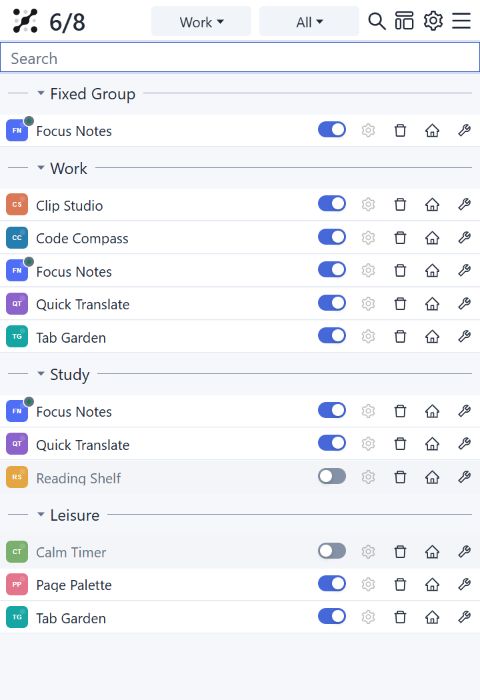
View and control extensions
Click an extension name or its grid item to toggle its enabled state. In list view, shortcut buttons appear on hover by default. They provide access to the extension's settings, homepage, browser management page, and uninstall action. Enable an extension before opening its settings page.
Use the layout button at the top to switch between list and grid views. Your choice is saved. You can adjust grid columns, name visibility, and operation menus in Settings.
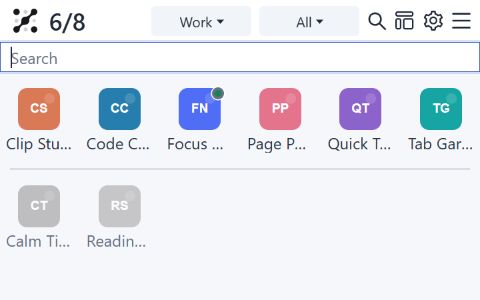
The count 20/54 means 20 of 54 ordinary extensions are enabled. It excludes Extension Manager itself, apps, and themes. Searching or selecting a group does not narrow this count. If you turn off “Display extensions of the fixed group,” fixed-group members are also excluded from the count.
Search
Click the magnifying glass, or press f while the search box is hidden, to open search. Search matches names, descriptions, aliases, and remarks; Chinese text also supports Pinyin matching. When a group is selected, ordinary extensions are searched within that group.
Settings can make the search box visible by default and enable store search. With store search enabled, enter a keyword and press Enter, or click the store icon next to the search box, to open results from the selected source.
Click the gear to open settings. You can also press s while the search box is hidden.
Group names and group switches
The two controls in the group menu serve different purposes:
- Click a group name to view its members. “All” returns to the combined view; “No Group Assigned” shows extensions that belong to no group.
- Use the switch next to a group to enable or disable its controllable members without changing the group you are viewing.
A switch can be off, mixed, or on. Mixed means that some members are enabled and others are disabled. Click its left half to disable all controllable members, or its right half to enable them. Fixed-group members are excluded, even when they also belong to the group being controlled. The fixed group and “No Group Assigned” have no batch switch. A switch is unavailable when a group has no controllable extensions.
If “Enable the current group and disable all other extensions” is enabled, turning a group on also disables ordinary extensions outside that group and the fixed group. Clicking a group name still only changes the view. See Groups.
Profiles
After creating Profiles, use the menu at the top to activate or deactivate them. Multiple Profiles can be active by default. Whether this changes extension states depends on the rules you have configured.
To make Profile activation exclusive, enable “Deactivate all other profiles when activating a profile” in Settings. See Profiles.
Sorting and items at the top
The ordinary view shows items placed at the top, followed by enabled extensions and then disabled extensions. Extensions outside the top section are sorted by name within their state section. If an alias is set, the Popup uses it for display and name sorting.
With “Display extensions by group” enabled, extensions are organized into groups, and each group can be sorted by name or enabled status. You can also sort by manual activation frequency or show recently enabled, installed, or updated extensions at the top. See Settings.
Snapshots and disabling everything
The menu at the top provides these actions:
- Capture Extension Snapshot saves the enabled and disabled states of ordinary extensions in this browser.
- Restore Snapshot restores the states recorded in a snapshot when you click its name. Adjacent buttons let you rename or delete it.
- Disable All Extensions disables ordinary extensions other than Extension Manager itself.
“Disable All Extensions” and “Restore Snapshot” also affect fixed-group members. The protection provided by group switches does not apply to these two actions.
Snapshots are local and store enabled states only. To back up groups, Profiles, and rules, use configuration export.
Apps
Apps are hidden by default. Enable “Display extensions of the APP type” to show them at the bottom of the Popup, where clicking an icon attempts to launch the app. Availability depends on support from the browser and the app itself.