Profiles
A Profile represents a context such as Work, Reading, or Presentation. You choose which Profiles are active, and rules use that state to control extensions.
A Profile does not contain an extension list or enable extensions by itself. For manual batch control, use groups.
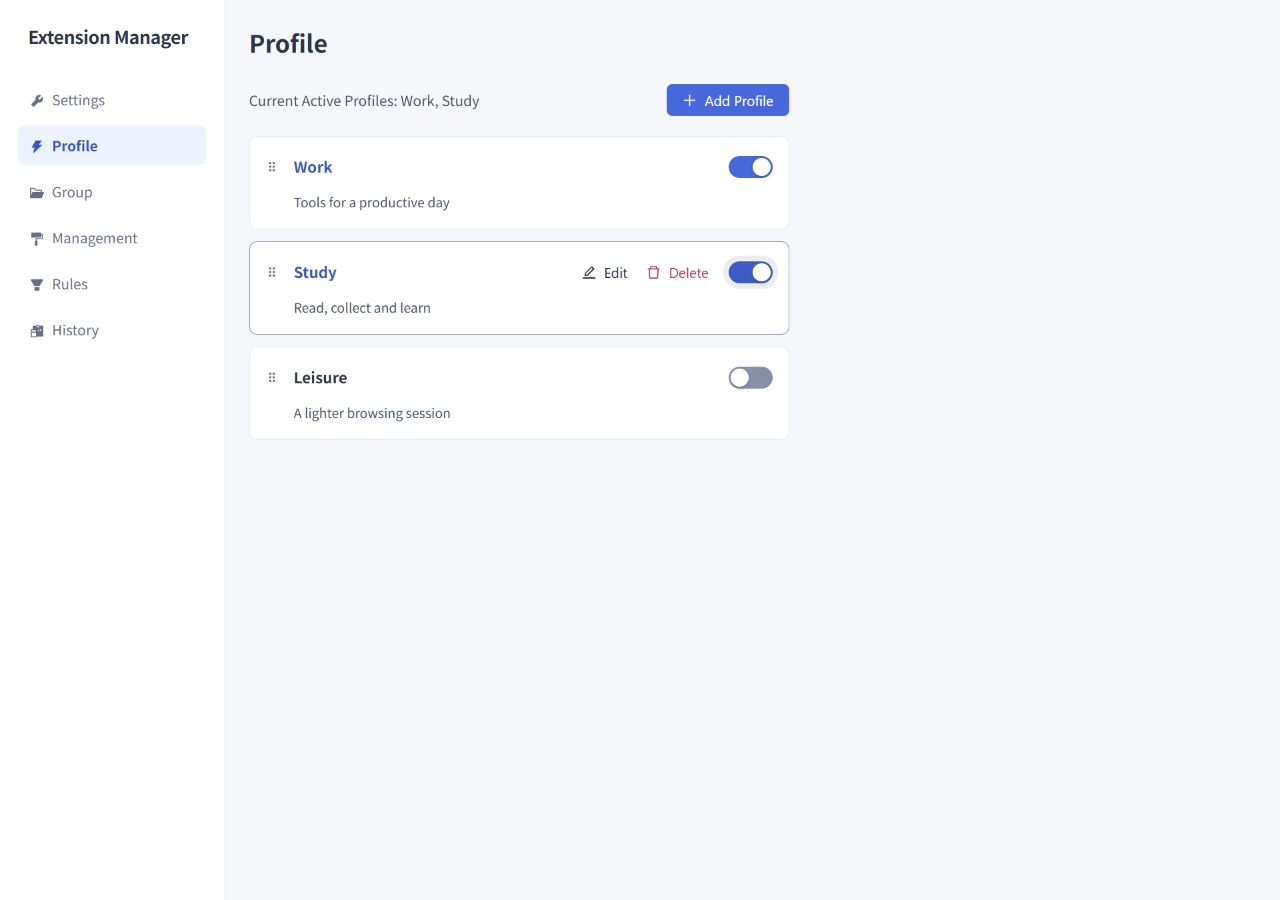
Create and activate a Profile
- Open Profile in the settings dashboard and click Add Profile.
- Enter a name, such as Work, add an optional description, and add the Profile.
- Activate it using its switch on this page or the Profile menu in the Popup.
- Use the switch again to deactivate it. Cancel all in the Popup clears all active Profiles.
You can have multiple active Profiles by default. For example, Work and Reading can be active together, allowing rules for both contexts to participate.
Example: enable a group of work tools
- Create a Work Tools group and add the extensions you need.
- Add a rule with a Profile condition and select Work.
- Select Work Tools as the rule's target group.
- Choose Enable Only When Matched, save the rule, and leave its switch on.
- Activating Work makes this rule request that its targets be enabled. Deactivating Work makes it request that they be disabled.
If you only want to enable the tools when entering Work and leave them unchanged afterward, choose Enable When Matched instead. Other rules and manual operations can still change those extensions' states.
A rule's Profile condition can include several Profiles. It matches when any selected Profile is active; they do not all need to be active.
Keep one Profile active at a time
In Settings, enable Deactivate all other profiles when activating a profile. Activating a Profile will then deactivate the others.
- This preference is off by default.
- Turning it on does not immediately change the Profiles that are already active.
- Deactivating a Profile does not automatically activate another one.
Deactivating a Profile changes its active state. Whether extensions are disabled still depends on their rules' actions.
Profiles on different devices
Profile names and definitions are part of the synchronized configuration. The set of active Profiles is stored locally. Activating Work on your office computer does not automatically activate it on your home computer.
You can therefore use the same Profile definitions and rules on several devices while choosing the active Profiles separately on each device.