Settings
Open the dashboard using the Popup's gear icon, then choose “Settings” in the sidebar. Preference changes save automatically. Reopen the Popup to see display changes.
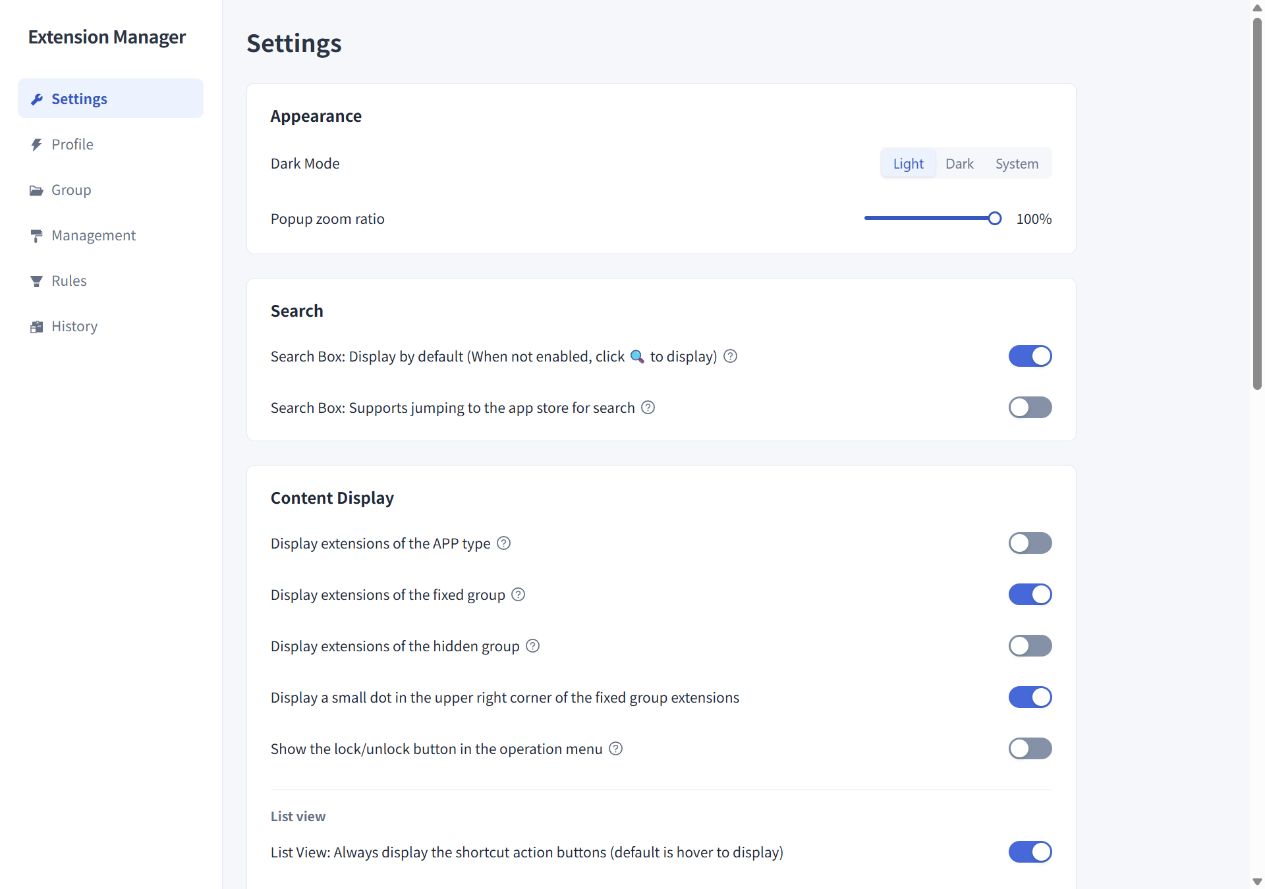
Appearance and search
“Dark Mode” offers Light, Dark, and System. “Popup zoom ratio” adjusts the Popup size from 10% to 100%.
Search settings let you show the search box by default and enable store search. The source can be the default store or crxsoso.com. The default store follows the Chrome or Edge package of Extension Manager that you installed. With store search enabled, enter a keyword and press Enter to open the results.
Content display
| Option | Purpose and default behavior |
|---|---|
| Display extensions of the APP type | Off by default; shows apps at the bottom of the Popup |
| Display extensions of the fixed group | On by default; turning it off hides members from the combined view, while selecting the fixed group still shows them |
| Display extensions of the hidden group | Off by default; turn it on to view the hidden group |
| Display a small dot on fixed-group extensions | On by default; marks fixed-group membership |
| Show the lock/unlock button in the operation menu | Off by default; adds or removes an extension from the fixed group |
| Always display list shortcut buttons | Off by default; buttons normally appear on hover |
| Display extension names in grid view | On by default; aliases take precedence |
| Grid columns | 6–10 columns; 6 by default |
| Display disabled grid items in gray | On by default |
| Display the grid operation menu by right-click | Lets you use right-click to open the menu |
Groups, sorting, and items at the top
Enable “Display extensions by group” to organize the Popup into groups. This reveals “Order: Default sorting field,” with Extension name and Enabled status options. Extension name is the default.
Sorting by activation frequency prioritizes extensions you have manually enabled more often in the Popup, with remaining items sorted by name. The counter is stored locally and records individual manual enables, not disables. It does not measure how long an extension is used.
You can also place recent extensions at the top:
- Recently enabled extensions: up to 10 extensions most recently enabled individually in the Popup.
- Recently updated extensions: choose recently installed or recently updated, with a period of 1, 7, 15, or 30 days. Recently updated also includes recently installed extensions.
Rules can place extensions at the top too. When several sources apply, rule-selected items come first, followed by recently enabled items and then recently installed or updated items.
“Refresh the Popup list (and resort) after enabling or disabling an extension” is on by default. Turn it off to reduce changes in item positions while making several adjustments.
Behavior
Enable the current group and disable all other extensions
Off by default. When enabled, turning on a group using its switch also disables ordinary extensions outside that group and the fixed group. Fixed-group members are protected from this operation. Selecting a group name still only changes the view.
Deactivate all other profiles when activating a profile
Off by default, allowing several Profiles to be active. When enabled, the next Profile you activate deactivates the others. Turning this setting on does not immediately change the active Profiles, and deactivating one Profile does not activate another.
The HOME button always opens the WebStore details page
By default, HOME opens the homepage supplied by the extension author, which might be a store page, project repository, or website. Enable this option to open the appropriate store page for extensions with a recognized Chrome or Edge store source. If the store source cannot be identified, the original homepage is used.
Configuration backup and reset
The four actions under “Data management” have different scopes:
| Action | Effect |
|---|---|
| Export Config File | Downloads JSON containing settings, groups, Profiles, rules, aliases, and remarks |
| Import Config File | Reads configuration JSON and merges it with the current configuration |
| Restore Default | Resets preference settings only |
| Clear Configuration | After confirmation, removes synced settings, groups, Profiles, rules, aliases, and remarks |
Export your current configuration before importing. Imported preferences replace matching settings. Groups, Profiles, and rules are added only when their IDs are new; existing items with the same ID are retained. Imported aliases and remarks update the corresponding extension IDs.
A configuration backup does not include extension packages, current enabled states, active Profile selection, history, or Popup snapshots. To share an extension list and open its installation pages, use Sharing and import. See Storage for the distinction between synced and local data.