Groups
Organize extensions into groups such as Reading, Work, or Development. Groups let you filter the Popup list and enable or disable several extensions with one switch. An extension can belong to more than one group.
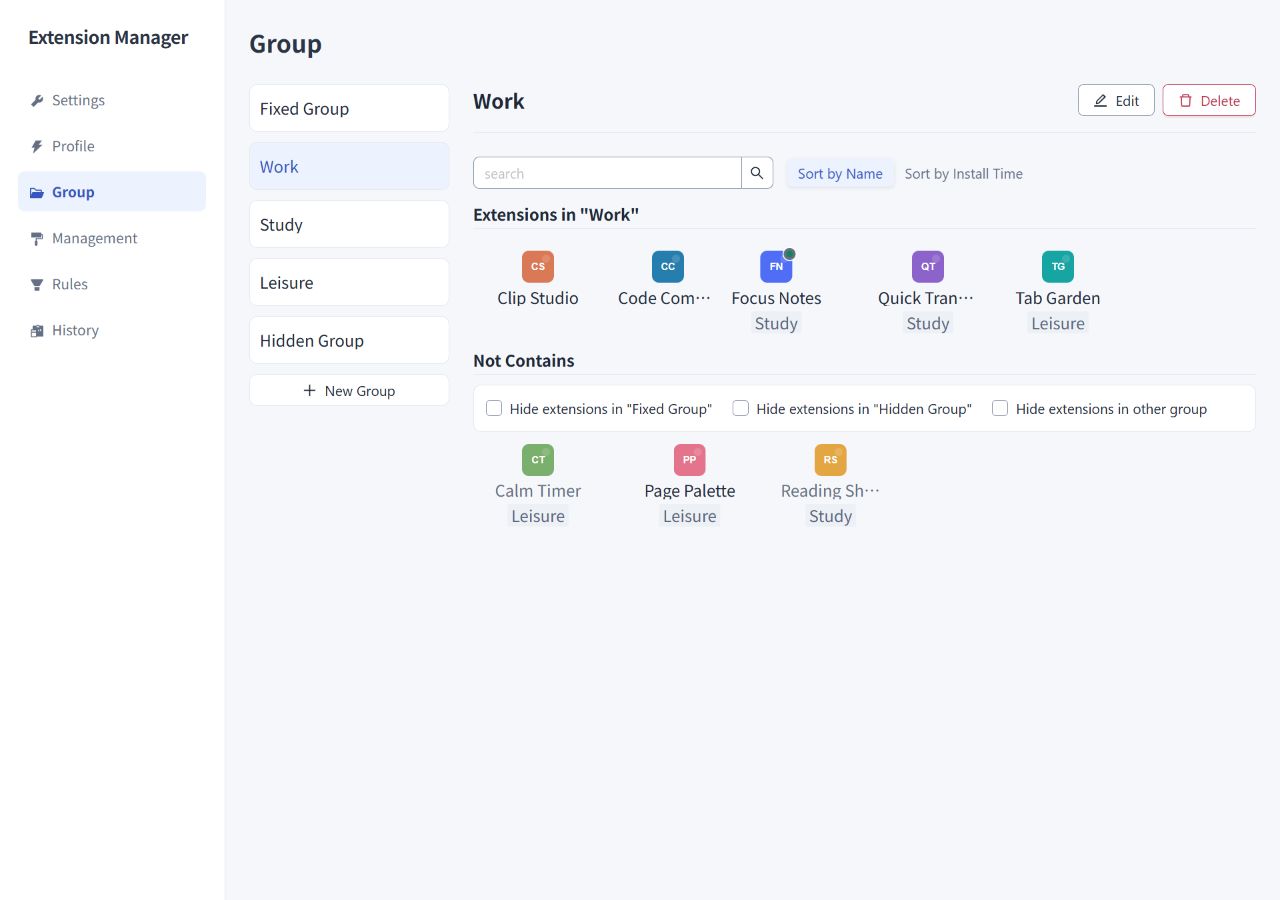
Create a group
- Open Group in the settings dashboard and choose New Group.
- Enter a name, such as Reading, add an optional description, and add the group.
- Select the group. Click an extension under Not Contains to add it.
- Click an extension in the group's member area to remove it. Use search to find extensions in a long list.
Adding or removing members changes group membership only; it does not enable, disable, or uninstall extensions. You can edit or delete custom groups. The built-in Fixed Group and Hidden Group do not offer those operations.
Use groups in the Popup
In the group menu, click a name to filter the list; use its switch to enable or disable the group. Changing the group you are viewing does not change extension states.
| Switch state | Meaning and action |
|---|---|
| Off | All controllable members are disabled. Click to enable them. |
| On | All controllable members are enabled. Click to disable them. |
| Mixed | Some members are enabled and others disabled. Click the left half to disable all, or the right half to enable all. |
| Unavailable | There are no controllable members, or a batch operation is in progress. |
Controllable members exclude extensions in the Fixed Group. The Fixed Group and the ungrouped entry have no group switch.
Disable other extensions when enabling a group
In Settings, turn on Enable the current group and disable all other extensions. Then enable the Reading group using its switch:
- Controllable extensions in Reading are enabled.
- Extensions outside Reading and the Fixed Group are disabled.
- Fixed Group members keep their existing states.
This preference is off by default. It applies when enabling a group. Disabling a group does not automatically enable another group.
Fixed Group: preserve extensions during group operations
Add extensions to the Fixed Group when you want group switches to leave them alone. Even if a fixed extension also belongs to Reading or another custom group, group switches do not change its state. This protection applies whether or not the exclusive-group preference is on.
The Fixed Group does not automatically enable its members. If a resident extension is disabled, enable it using its individual switch.
Fixed Group protection applies to group switches. Individual extension switches, automatic rules, the disable-all command in the More menu, and snapshot restoration can still change fixed members' states.
Turn on Show the lock/unlock button in the operation menu in Settings to add or remove Fixed Group membership directly from the Popup. This button is hidden by default and has its own preference, independent of exclusive group activation.
Display extensions of the fixed group controls their visibility in combined views such as All. Even with this option off, you can select the Fixed Group directly from the group menu to view its members.
Hidden Group: reduce the number of visible items
Hidden Group members are hidden from the regular Popup lists by default. To display them, turn on Display extensions of the hidden group in Settings.
Hidden Group membership does not prevent top display. A member can still appear at the top when selected by a rule or the recent-enable/install/update features. This is intentional; see Advanced Features.
Hiding affects display only. It does not disable an extension or give it the Fixed Group's protection from group switches. An extension can belong to both groups if you want both behaviors.
To control a group automatically by website or Profile, select it as a target in Rules.