Sharing and import
The sharing and import features under Management help you create an installed-extension list, send it to someone else, or open installation pages on another device. A list can include aliases and remarks to explain what each extension is for.
Share or export a list
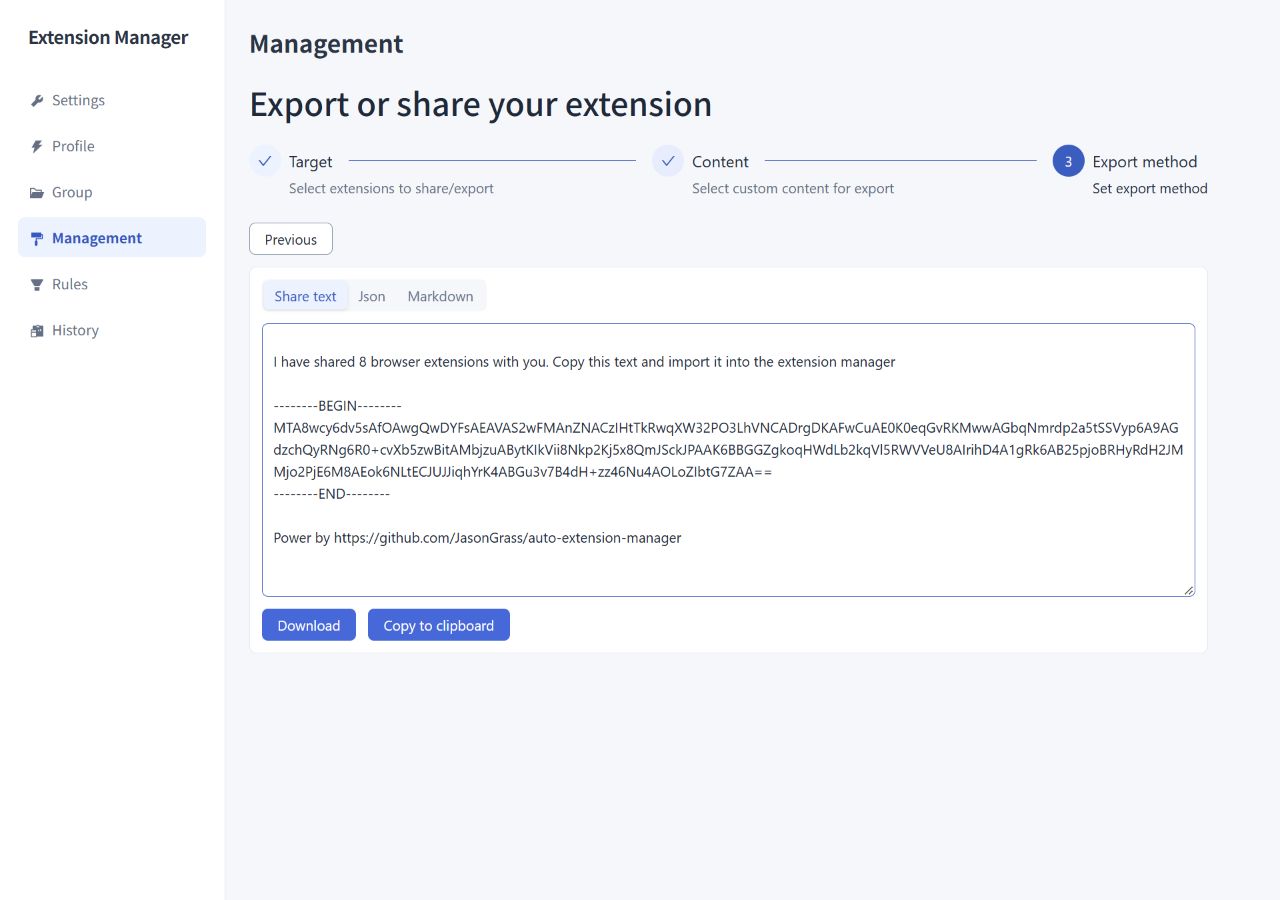
- Open “Management” and click “Share/Export” at the top right.
- Under “Target,” choose “All extensions” or “Partial extension.” For a partial selection, choose groups or individual extensions.
- Under “Content,” choose whether to include aliases and remarks. Basic extension information is always included.
- Under “Export method,” choose a format and click “Download” or “Copy to clipboard.”
| Format | Use |
|---|---|
| Share text | Send Extension Manager's generated text to someone who will read it on the import page |
| Json | Save a structured extension list, including selected aliases and remarks, for import or use in other tools |
| Markdown | Create extension descriptions for documents, notes, or project pages |
Markdown supports a default template and custom templates. For example, ${name} inserts the extension name and ${webStoreUrl} inserts its store link. Custom templates are stored in the current browser. Markdown is a presentation format and is not supported for import.
Install extensions from a list
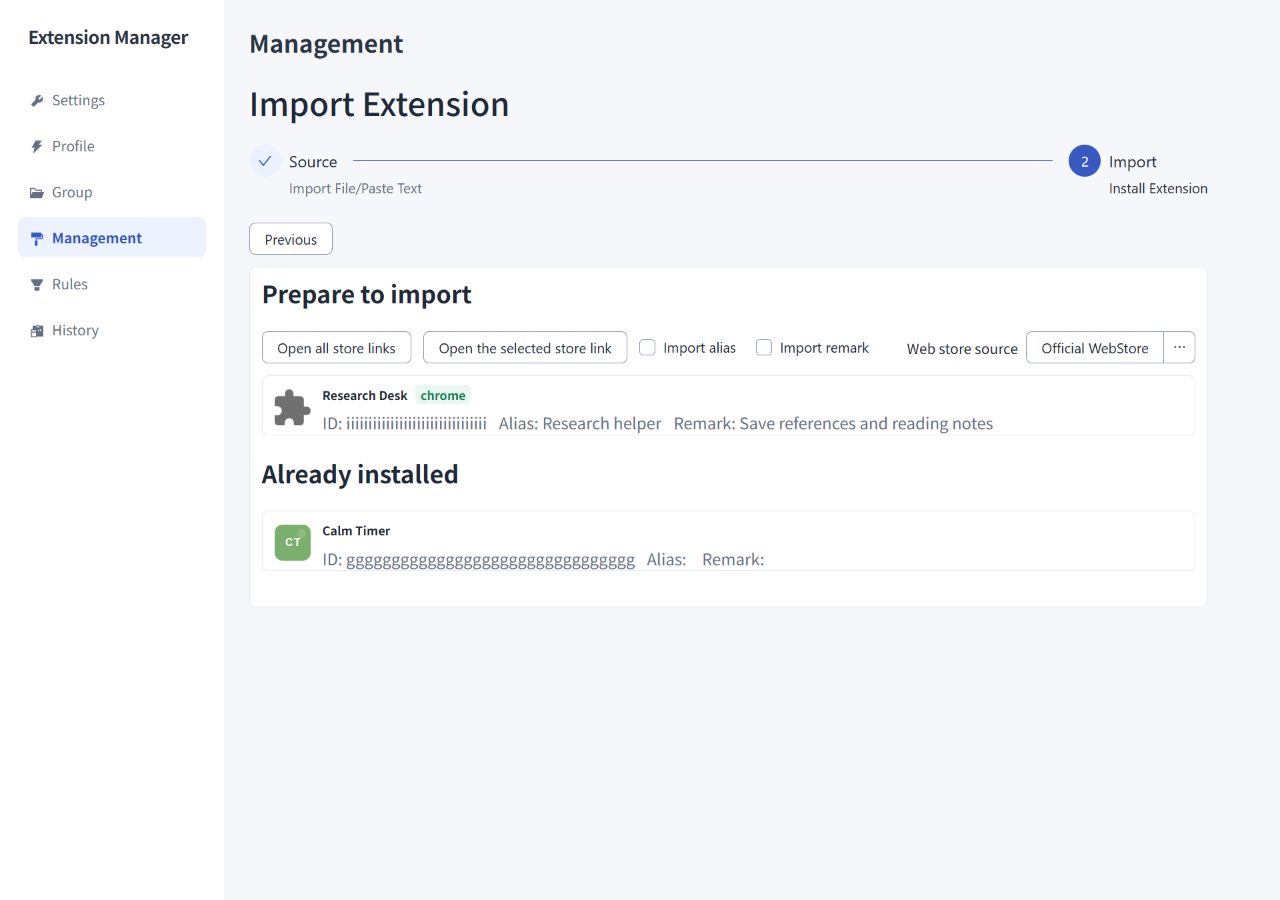
- Open “Management → Import.”
- Paste share text or a JSON list. You can also use “Paste from clipboard” or “Read from file” to load a
.txtor.jsonfile. - Click “Next” to see “Prepare to import” and “Already installed.”
- Select “Import alias” and “Import remark” if needed, and choose the web store source.
- Open an individual, selected, or complete set of store links, then follow the browser's installation prompts on each store page.
Import reads the list and opens store pages. You complete installation in the browser. Already installed extensions appear separately and do not need to be installed again.
To save a newly installed extension's alias or remark from the list, select the relevant options before installing and keep the import page open during installation. Selecting these options does not immediately overwrite aliases or remarks for extensions in “Already installed.”
The official store is the default source; crxsoso.com is also available. Installation depends on whether the store listing remains available and the current browser supports the extension.
Lists and configuration backups
An extension list contains extension information and optional aliases and remarks. It does not contain group definitions, Profiles, automatic rules, other extensions' settings, or extension packages.
To move Extension Manager's settings, groups, Profiles, and rules, use “Settings → Export Config File / Import Config File.” The two kinds of JSON serve different purposes and must be imported on their respective pages. See Configuration backup and reset.