Rules
A rule defines when it matches, which extensions it targets, and what action it takes. Use rules to manage extensions by website, Profile, operating system, or time period. A rule can also display relevant extensions at the top of the Popup without changing their states.
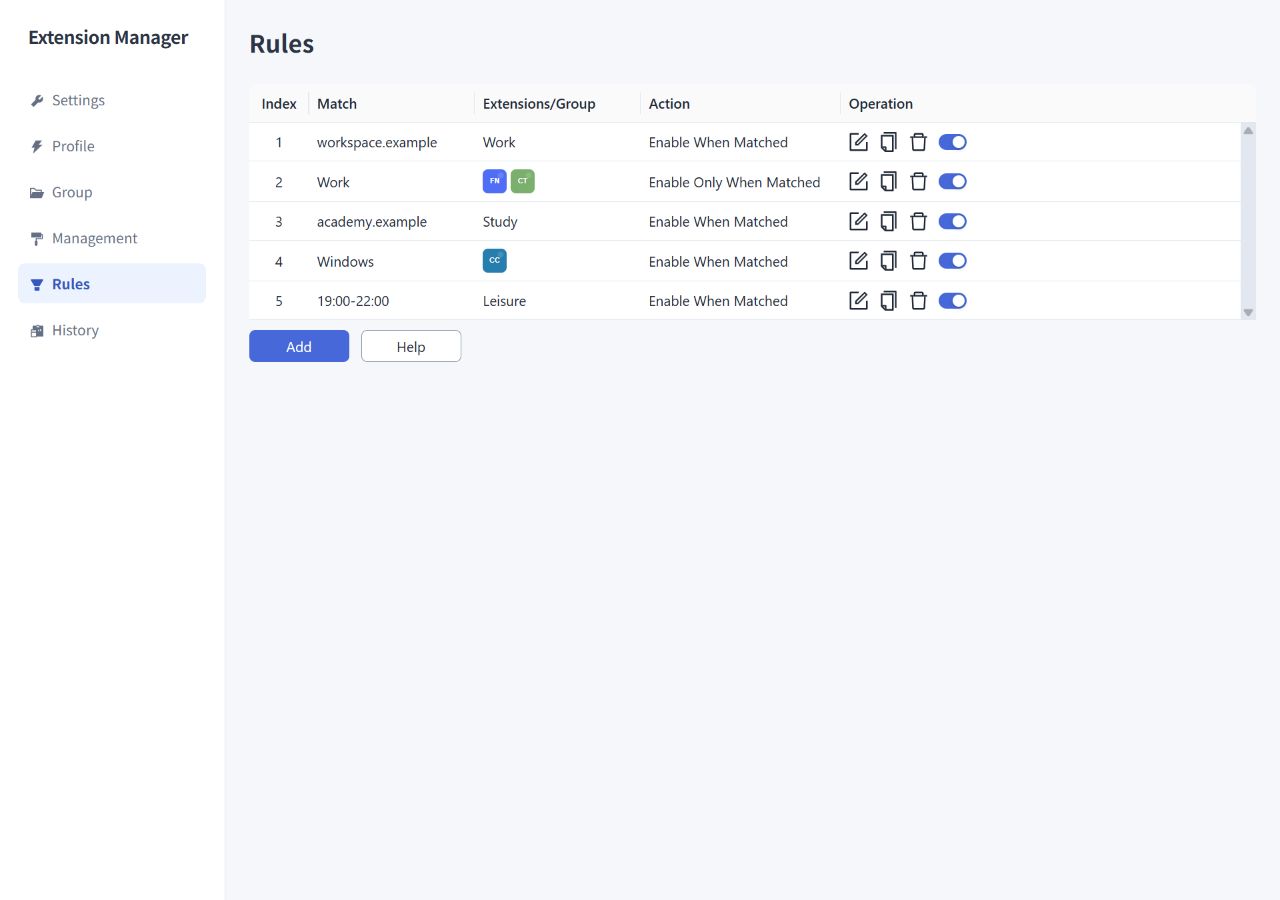
Add a rule from this page, or use each row's edit, duplicate, delete, and switch controls. Turning a rule off excludes it from automatic extension control and rule-based top display. It does not restore extension states changed earlier.
Create your first website rule
This example enables a reading extension when you visit a blog on cnblogs.com:
- Open Rules and click Add.
- Add a URL condition under Matching Conditions, choose Wildcard, and enter
*://www.cnblogs.com/*. - Under Target: Extension or Group, select your reading extension.
- Choose Enable When Matched under Action, then save.
- Open a matching page. When you move to another website, this rule will not disable the extension.
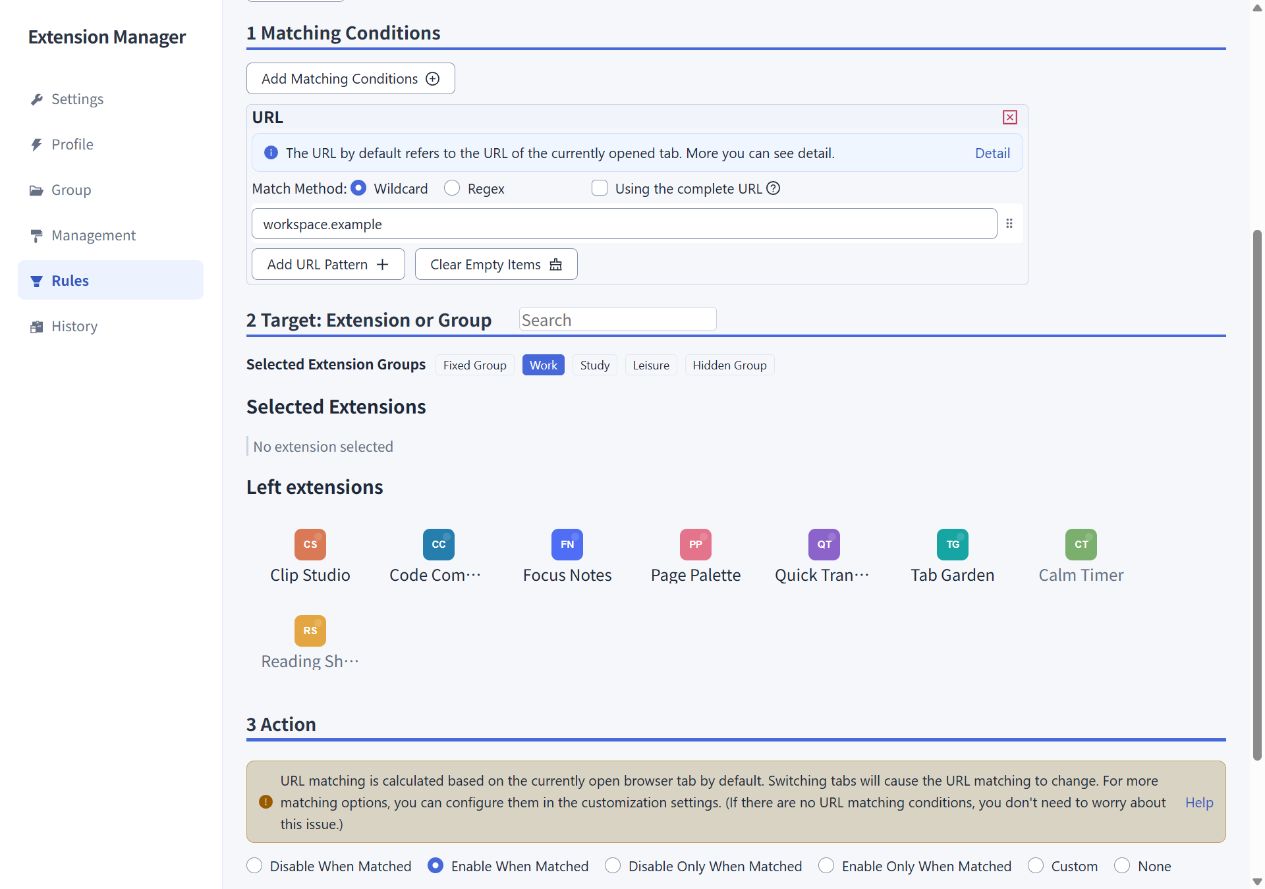
Choose Enable Only When Matched if you want to disable the extension when you switch to another website. To keep it enabled while any reading page remains open, use the Custom example below.
1. Choose matching conditions
Add at least one condition. When combining condition types, choose:
- Match all of the following conditions: for example, Work must be active and the website must match.
- Match any of the following conditions: for example, Work is active or the website matches.
Each condition type can be added once. Within a condition, you can select multiple URL patterns, Profiles, operating systems, or time periods. Any one of those entries can satisfy that condition.
URL
Standard actions check the current tab's URL. The current tab is the active tab in the browser window that most recently had focus. Custom actions can also check any open tab across browser windows.
| Match method | Syntax and behavior |
|---|---|
| Wildcard | * matches any number of characters and ? matches one character. Examples: *://www.cnblogs.com/* or file://*.pdf. |
| Regex | Enter the expression itself, without /.../ delimiters. Example: ^https?://www\.cnblogs\.com/. Matching ignores case. |
Wildcard matching adds * to the beginning and end of a pattern automatically. A plain text pattern therefore acts as a contains match. Use Regex when you need stricter control over the protocol, hostname, or path.
Query parameters and fragments are excluded by default. For example:
https://example.com/article?id=123#comments
The default match input is https://example.com/article. Select Using the complete URL if your rule needs id=123 or #comments.
Profile
Create Profiles on the Profile page, then select them in your rule. The condition matches when any selected Profile is active.
Operating System
Select the operating systems on which the condition should match. This lets synchronized rules behave differently on different devices; it does not change which extensions the browser itself supports.
Period
Time conditions use the device's local hour and minute. You can add up to 10 periods, and each start time must be earlier than its end time. A single period cannot cross midnight. Both the start and end times are included.
Rules are evaluated at initialization and on events such as URL changes, tab switches or closures, window changes, and Profile changes. Reaching a particular minute does not itself trigger evaluation.
For example, a 17:00–18:00 condition may not take effect until you switch tabs at 17:20 if no relevant browser event happens earlier.
2. Choose target extensions or groups
Select multiple extensions, groups, or both. Group members and individually selected extensions are combined and deduplicated. Extension Manager excludes itself from automatic enable/disable targets.
The Fixed Group protects against manual group-switch operations only. Rules can disable Fixed Group members. Hidden Group membership also gives no exemption from rules.
3. Choose an action
The table describes the operation requested by this rule. When several rules target the same extension, conflict handling also applies.
| Action | Conditions match | Conditions do not match |
|---|---|---|
| Disable When Matched | Disable | No action |
| Enable When Matched | Enable | No action |
| Disable Only When Matched | Disable | Enable |
| Enable Only When Matched | Enable | Disable |
| None | No action | No action |
“No action” means this rule leaves the state unchanged. Other rules and manual operations can still change it. When these standard actions include a URL condition, they evaluate it against the current tab.
Custom: disable after all reading tabs are closed
This setup enables an extension when you visit a reading page, keeps it enabled while you switch tabs, and disables it once no matching pages remain:
- Add a URL condition with the Wildcard pattern
*://www.cnblogs.com/*, and select your reading extension as the target. - Choose Custom as the action.
- For enabling, choose When the conditions match and Current Tab Match.
- For disabling, choose When the conditions not match and All Tab not Match.
- Save, open a matching reading page, switch to another website, then close all matching reading tabs and observe the extension's state.
To enable the extension even when the matching page opens in a background tab, change the enabling option to Any Tab Match. If you add Profile, operating system, or time conditions, they still participate according to the rule's all/any condition relationship.
In the current version, Custom actions may not run when a rule only uses Profile, operating system or time conditions. This is an implementation defect awaiting a fix. For now, use standard actions such as Enable/Disable When Matched or Enable/Disable Only When Matched.
Reload the current tab
Some extensions need a page reload before they take effect. You can separately select Reload the current tab after enabled and Reload the current tab after disabled.
Reloads accompany actual enable/disable operations, rather than every rule evaluation. When an operation is triggered by Any Tab Match, the current tab is reloaded only if it also matches the rule. Matching tabs are not all reloaded together.
Conflicts and deferred disabling
Within one evaluation, an action caused by matching conditions takes precedence over an action caused by nonmatching conditions. At equal priority, the rule encountered first takes precedence. Avoid contradictory actions targeting the same extension where possible.
Automatic disabling has a delay of about one second. A new automatic enable request can cancel a pending disable during that interval. Disabling is also deferred while a page belonging to the target extension remains open in a tab.
To make tools easier to find without automatically changing their states, see top display.