History
Choose “History” in the dashboard sidebar to see extension installations, removals, updates, enables, and disables. This helps you understand recent changes.
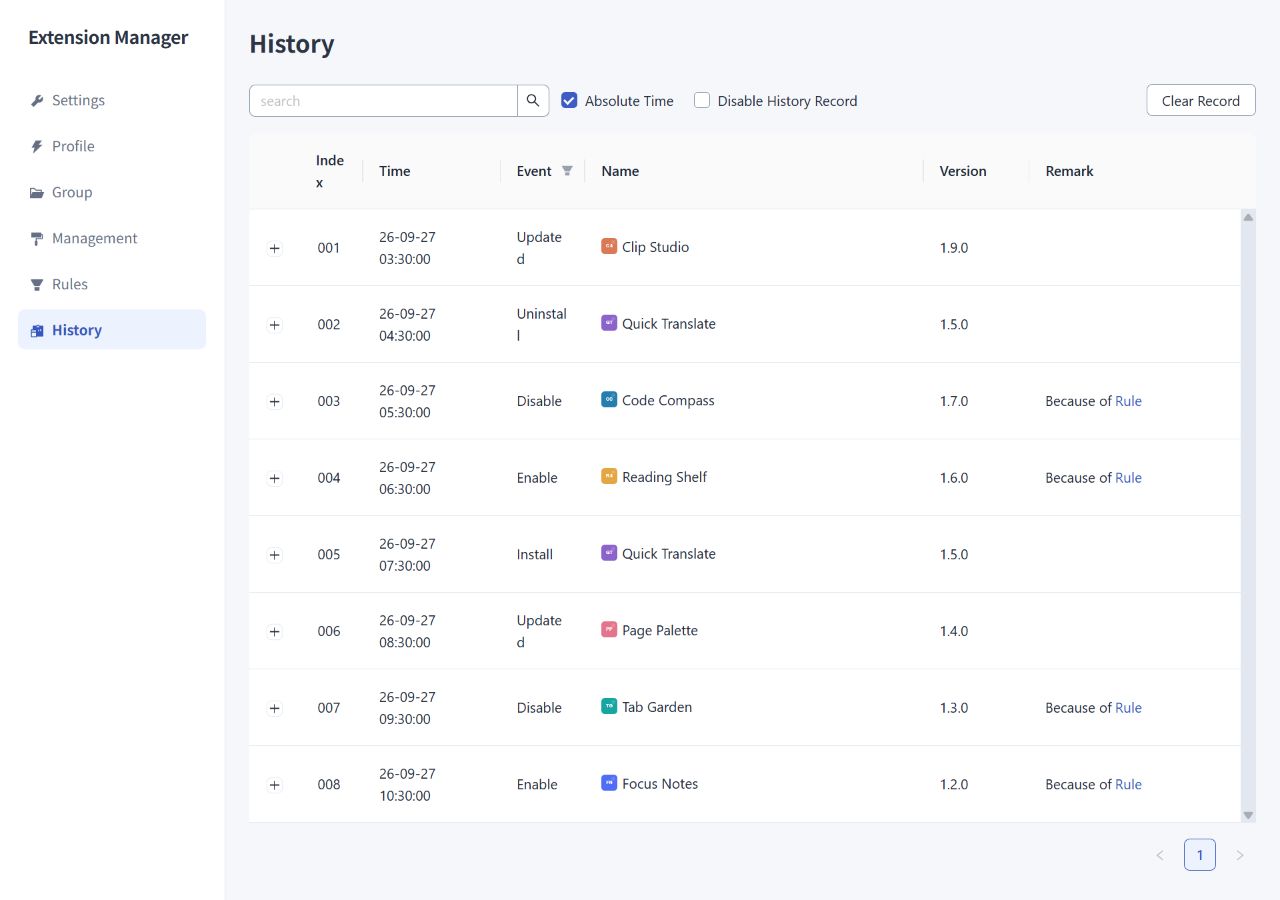
View and find records
The newest records appear first. The page shows up to the latest 1,000 records, with 100 per page. Times are relative by default; select “Absolute Time” to see specific dates and times.
- Search by extension name, description, alias, remark, or extension ID.
- Use the Event column filter to select installations, removals, updates, enables, or disables.
- Click the eye icon next to an extension name to show only that extension's records.
- Click a row to expand its description, homepage, and link to the browser's extension management page.
Aliases take precedence in the Name column. For state changes caused by automatic rules or group operations, the remark can identify the source and link to the related rule or group.
Hide and restore records
Click the hide icon next to an extension name to hide that extension's records from the list. This only changes visibility: it does not delete records or stop new events from being recorded.
To show them again, open “Hidden Records” and click the restore control next to the extension.
Stop recording or clear history
“Disable History Record” stops new events from being saved. Clear the checkbox to resume recording. Existing records remain, and operations performed while recording was disabled are not added later.
“Clear Record” deletes existing history after confirmation. It does not uninstall extensions or remove groups and rules. If recording remains enabled, later events will still be recorded.
History stays in the current browser, does not sync with your account, and is not included in configuration exports. It is a limited recent log, not a permanent audit archive or a complete backup. See Storage for details.